Is there a handwriting planner app for an Android tablet that works with a stylus?
Page updated 25 November 2026. App facts are for Page & Hour 1.3.7.
Page & Hour is a free handwriting planner and bullet journal for Android tablets and phones, on Google Play. You write with a stylus, such as the Samsung S Pen, or with a finger, on yearly, monthly, weekly and daily spreads that the app dates for you. Free: nine pens, all four dated spreads, your first notebook, templates, eight stickers, text boxes, photos, page sharing and a full backup file with Restore. Supporter is one optional purchase, not a subscription, and Google Play sets its price for your country. The app works offline, keeps pages on the device and needs no account. It is not on the App Store.
Get Page & Hour on Google Play
What is a handwriting planner app for an Android tablet that works with a stylus?
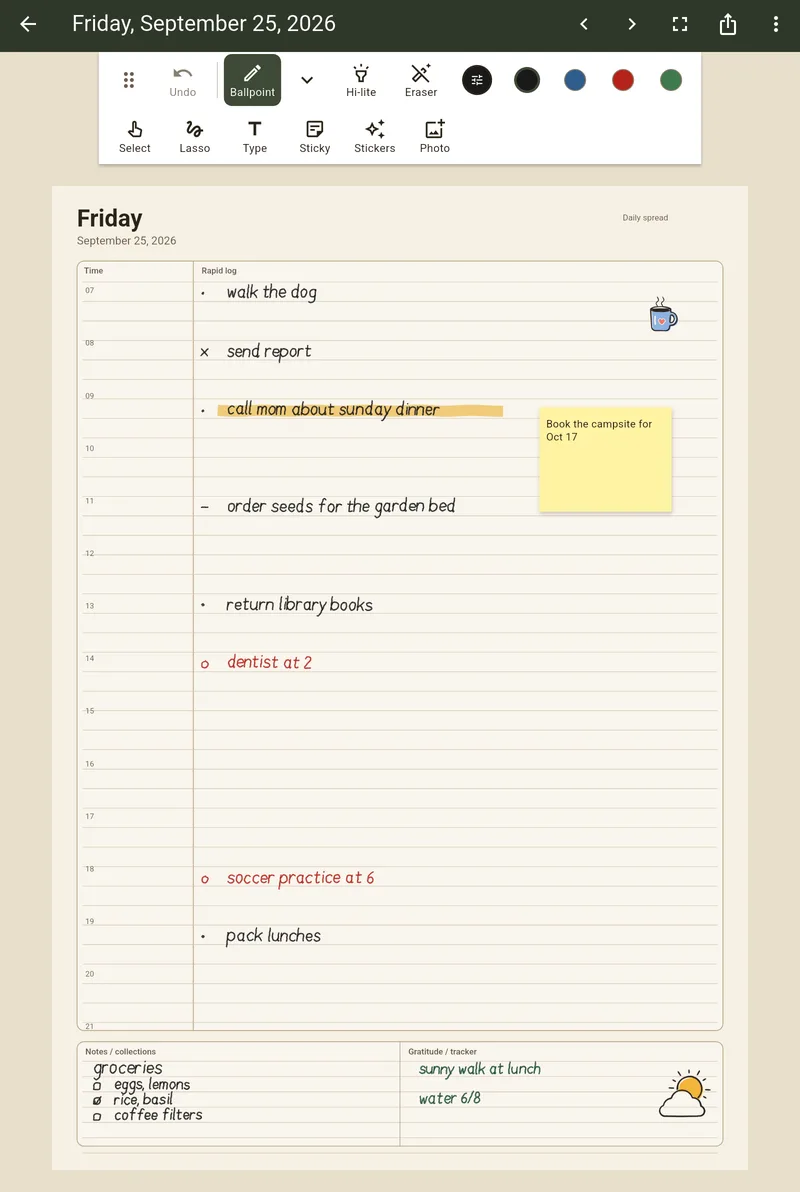
Page & Hour is built around writing by hand on dated pages. A tablet day page is an A4 spread. The Complex layout, which new pages use, has a rapid log, an hour column from 07 to 21, a Notes / collections box and a gratitude tracker. Blank is a date heading on open paper, and Simple is ruled lines. The app runs on Android 7.0 or newer and rotates between portrait and landscape. You can drag the toolbar to any edge of the screen, so a left-handed writer can put it on the right.
It does one job. It makes the pages of a paper planner and lets you write on them. It does not sync between devices, open or mark up PDFs, or turn handwriting into typed text. The comparison below says which apps do.
Does Page & Hour work with the Samsung S Pen and other styluses?
Yes. Page & Hour treats any pen that Android reports as a stylus, the S Pen included, as a stylus. The app contains no Samsung-specific pen code, so S Pen air actions, Screen off memo and other Samsung pen features are not part of it. The list below is what the app does with the pen signals Android passes along.
- A stylus takes over from a finger or palm that landed first. The palm's mark is dropped and the pen starts the line.
- Once a stylus has touched the page, the app remembers it on that device. From then on one finger moves the page, fingers do not write, and pinching still zooms. In the pen panel, under With a stylus, Fingers write too lets fingers write again, and Fingers move the page switches back.
- Touches are ignored while the pen is touching the screen, hovering over it, or was lifted in the last half second. This covers writing, moving the page, taps, selecting and the page-turn edges.
- The eraser end of a pen erases. So does the side button, when it is held as the tip lands. The button is read only at that moment, so changing your grip mid-line does not change the line. The pen you picked stays selected afterwards.
- Line width follows pressure on the ballpoint, ink pen, brush pen and watercolor, and the brush pen has the widest range. The fineliner and the pencil draw one width.
- Where the screen reports hover, a small circle in the pen's color and width shows where the pen will land.
Hover, the eraser end, the side button and pressure need a real pen to check. As of November 2026 they have been tested with simulated pen events on tablet and phone emulators, and no test with a physical S Pen is recorded. Some pens and tablets do not report hover at all.
What happens when my palm rests on the screen?
Before a stylus has touched the page on the device, a touch wider than about 14 mm is treated as a palm and does not write. Some touch screens report contact size in their own units, so every finger would look like a palm. For those, the first two wide touches in a row are dropped, the third is kept, and the size check stays off for the rest of that page visit, so finger writing still works.
After a stylus has touched the page, the app remembers it on that device and the rules above apply. Fingers do not write while the pen is touching, hovering or lifted in the last half second, and a wide touch is ignored, with no three-touch escape.
Is there a bullet journal app for an Android tablet that I can use with a pen?
Page & Hour has the four dated spreads of a paper bullet journal, free: a yearly page with twelve small calendars, a monthly grid with notes and a tracker, a weekly page with seven day columns, and a daily page. To set up a notebook, pick a date range and the spreads you want, and the app makes the dated pages in order.
On the page you get nine pens and 18 ink colors, an eraser, undo, zoom, and a lasso that moves what you wrote. To migrate a task, circle it with the lasso, tap Move and pick a date. A > mark stays where it was, as on paper. There is no Redo button. On a tablet the top bar has previous and next page arrows, which read Yesterday and Tomorrow on a day page.
On a tablet in landscape, the page menu can show this week, or the next day, beside a day page. The setting is off until you turn it on. The other page is read-only until you tap Write here. Bullet journal layouts are covered in more detail on the bullet journal app for Android page.
Is there a free digital planner for a Galaxy Tab or other Android tablet?
Page & Hour is free on Google Play. These are free: all nine pens and 18 ink colors, the yearly, monthly, weekly and daily spreads, your first notebook and its cover, templates, the eight built-in stickers, text boxes in six fonts, sticky notes, photos, sharing a page as an image or PDF, and a backup file of the whole journal with Restore.
Supporter is one payment, not a subscription. Google Play shows the price for your country. It adds more notebooks, notebook PDF export, eight more spreads, six more fonts, sticker sets, brushes, paper colors and automatic backup to Google Drive or a folder. The full list is on the Page & Hour page.
Pages, ink, photos and notes stay on the device, and there is no account. A phone and a tablet do not sync with each other. A backup file moves a whole journal, photos included, from one device to another. The app goes online to check the Supporter purchase and to send anonymous step counts, which a switch in About turns off. Nothing you write is sent. See the privacy policy.
How does Page & Hour compare with other Android handwriting apps?
Checked on 25 November 2026 against each app's own site or help pages, and for Penly's price and OneNote's account and Android version the Google Play listings as read on 23 November 2026. Numbers in brackets point to the sources below. "Not stated" means the source does not say. An app's store listing may say more than its website.
| App | Stylus and handwriting, from its own source | Planner pages | Account and sync | Price model |
|---|---|---|---|---|
| Page & Hour | Stylus (S Pen included) or finger; touches ignored near the pen; eraser end and side button erase; pressure changes width on four pens | Yes: dated yearly, monthly, weekly and daily spreads, made for a date range | No account. No sync between devices; backup file | Free; Supporter is a one-time purchase |
| Samsung Notes | Handwriting with the S Pen, which Samsung recommends; finger also works; handwriting can be converted to text [1] | Page templates such as grids or lined paper [1] | Samsung Cloud sync; shared notes for up to ten people [1] | Free [2] |
| Noteshelf | Realistic pens; stylus and S Pen not mentioned on its home page [3] | No planner mentioned on its home page; stickers, covers and templates [3] | Android and Windows sync through Google Drive. Auto-backup to Drive, OneDrive, Dropbox or WebDAV is part of Premium [3] | Free for up to 3 notebooks; Premium adds unlimited notebooks, all templates, handwriting recognition [3] |
| Squid | Pressure sensitivity; active pens; pen side button quick actions; write with the pen and erase with a finger [4] | Paper types include planners; the site does not describe dated yearly, monthly, weekly or daily pages. PDF markup and forms [4] | Not stated on its site; Cloud Backup is a Premium feature [5] | Premium subscription; PDF Import and Tool Pack can be bought once [5] |
| Penly | Made for Android tablets; recommends a Bluetooth stylus [6] | Undated planner with linked month, week and day pages; you write the dates [6] | Exports a .penly file or PDF. The website does not mention sync; the Play listing says Google Drive sync between Android devices [6][7] | Paid app, US$4.79 on 23 Nov 2026 [7] |
| Saber | Handwriting app; stylus and pressure not mentioned in its README [8] | None listed [8] | Syncs through the Saber server or one you host [8] | Free, open source (GPL-3.0) [8] |
| Microsoft OneNote | Pen and ink [9] | None listed [9] | Free Microsoft account [9] | Free [9] |
On a narrow screen, scroll the table sideways.
Where another app is the better pick
- Samsung Notes is Samsung's own app for Galaxy phones, tablets and Galaxy Book PCs. It imports and marks up PDFs, converts handwriting to text, and shares notes with up to ten people. If you own a Galaxy Tab and want general note-taking with the S Pen, start there.
- Noteshelf syncs Android and Windows devices through Google Drive, and its Premium tier adds auto-backup to Google Drive, OneDrive, Dropbox and WebDAV.
- Squid marks up PDFs, fills in forms and exports notes to PDF. Its site lists pressure sensitivity, active pens and the pen side button.
- Penly imports PDFs and planners you buy elsewhere, and its linked undated planner is made for Android tablets.
- Saber is open source and runs on Android, iOS, Windows and Linux, with sync between devices.
- OneNote syncs notebooks across devices and computers through a Microsoft account.
What Page & Hour does not do
- It does not sync between devices. A backup file moves a journal by hand, and Supporter adds automatic backup to Google Drive or a folder.
- It does not open or mark up PDFs, and it does not convert handwriting to text.
- It has no Redo button.
- It has no Samsung S Pen air actions or other Samsung-only pen features.
- Hover, the eraser end, the side button and pressure have not been tested with a physical S Pen.
- It is on Google Play only. There is no iPhone or iPad version in the App Store.
If you want dated yearly, monthly, weekly and daily pages to write on by hand with a stylus on an Android tablet, Page & Hour makes those pages for you and is free to start.
Get Page & Hour on Google Play
More: Page & Hour features and FAQ · Bullet journal app for Android · Free bullet journal printables · Support · Privacy